Objective
The purpose of this article is to provide direction to Outreach Admins in setting up and managing Research Agent. The Research Agent feature provides AI-powered research automation to Outreach users by extracting insights from internal or external sources and saving them into account fields for use in personalization, planning, segmentation, or automation.
Note: Research Agent utilizes Gemini Grounding with Google Search and is subject to Google's usage restrictions and authorizations (source). Research Agent can be configured by the Customer's Admin User to be enabled or unavailable for Customer's Authorized Users.
Applies To
- Outreach Amplify Package
- AI Content > Research Agents
- Account Objects
- Personas: RevOps (setup and execution), AE/SDR (consumption only)
Before You Begin
- Research Agent must be configured by RevOps users from the Research Agents tab in the Outreach platform.
- Each Research Agent must use either internal or external sources (not both).
- Running agents is permission-controlled.
- Results are stored in custom fields on accounts.
- All runs are logged and tracked.
Overview
What Is Research Agent?
Research Agent is a tool that automates account-level research using AI. It extracts structured insights from either internal (Kaia call transcripts, Kaia meeting summaries, emails) or external (Gemini-powered search and Google-grounded web content) sources. The research results are saved into account fields and used across Outreach — in smart account plans, reporting, filters, and triggers.
Configuration
RevOps: Set Up and Manage Research Agents
- Log in to Outreach.
- Click Agents & AI > Research Agents. From this list view, RevOps can view existing agents, create new ones, and test and refine agent configuration in Playground Mode.
To create a new Research Agent:
- Click New research agent.
- Choose a blueprint or start from scratch.
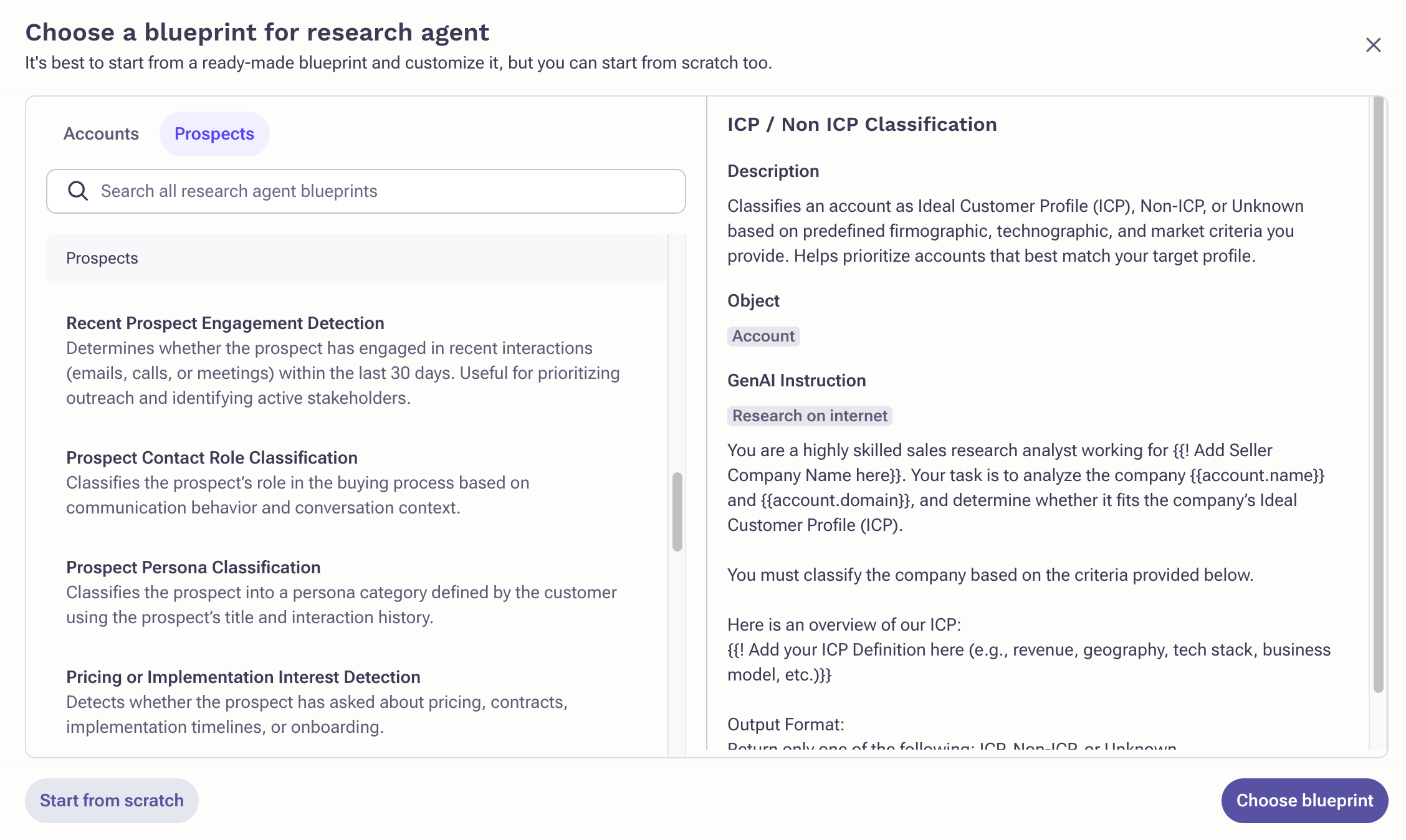
- Name the agent and add a description.
- Confirm object: Account or Prospect.
- Select the field where research results will be stored.
- Choose onesource type:
- Outreach: Kaia calls, Kaia meeting summaries, and emails
- Web: Gemini + optional Google Search
- Use Playground Mode to preview and iterate on outputs.
Once saved, the agent is available for use across the platform.

Running Research Agents (RevOps, AE, SDR Based on Access)
Option 1: Account List View (Bulk Run)
- Go to the Account List View.
- Use Manage Columns to add Research Agent fields.
- Select accounts.
- Click Research AI Fields.
- Choose fields to run from the pop-up.
- Execute the run. Populated fields will be updated unless override is enabled.
Option 2: Account Plan View (Manual Run)
To set up Research Agent tiles in Account Plan:
- Add the Research Agent tile to the Prospect or Account Overview layout.
- Click Configure to select which Research Agent fields to surface in the tile.
- Click Research AI Fields to launch the field selection pop-up.
- Execute. Selected fields auto-populate in the plan tiles.
- Use the copy icon to quickly share insights and paste content into documents.
- Use the info icon to view detailed citations for each field.


Enhancements for Context and Coverage of Internal Research
Buyer-Seller Tagging
Improves contextual accuracy by enabling the LLM to distinguish between buyer and seller voices during Kaia calls and meetings — resulting in sharper, buyer-focused summaries.
Expanded Coverage
Research Agent now processes a larger data window:
- Emails: Increased from 80 to 500
- Meetings/Calls: Increased from 10 to 80
This gives the agent significantly more context for analysis and insight generation.
Time-Frame Filters
Users can now define the time period for their research, choosing from preset options or custom ranges:
- All time
- Last 7/30/90/365 days
- 7/30/90/365 days prior to last conversation
- Custom: Choose any custom date range
In-Product Guidance
Collapsible "How Research Agent Works" Banner
A new collapsible banner has been added to the configuration screen to help users understand what Research Agent can and cannot do. This banner explains the two modes of operation:
- Web: Performs internet searches to fetch the most up-to-date online information.
- Outreach (Emails, Kaia Calls/Meetings): Searches internal data like meeting transcripts and emails.
It also clarifies the expected scope and limitations of Research Agent, and can be expanded or collapsed as needed.

Research Agent Run Notifications
Users receive in-app notifications when Research Agents are executed, showing the status of the run and field updates. These alerts provide transparency and feedback, especially during bulk or plan-based research actions.
To configure notification settings:
- Log in to Outreach as a user.
- Click your profile > Personal settings.
- Navigate to Notifications > Research Agent Run Status.
- Toggle on the desired visibility and notification channels.
- Click Save.

Governance
Global Toggle in Org Settings
A Global Research Agent toggle is available in the Gen AI Settings page under Org Settings. This feature is enabled by default, allowing admins to turn off Research Agent if not required for their organization. It provides centralized control for system administrators to manage Research Agent availability across all users.

Profile Access Governance
Admins can control access to Research Agents through granular governance settings that determine what actions each profile can take and on which agents. These settings ensure data security, accountability, and operational control.
Admins can configure Read, Update, and Delete permissions across the following scopes:
- None
- Owned by them
- Owned by them and their reports
- Owned by them, their peers, and their reports
- Owned by anyone
Each permission can be independently scoped based on organizational needs. Two additional permissions are also available:
- Can create: Allows users in this profile to create new Research Agents.
- Can run research agents: Allows users to execute or trigger research agents.

Key Use Cases
Internal Research (via Kaia Calls, Meetings, and Emails)
Handoff and Onboarding Support
Surface success criteria, implementation details, and use cases from past conversations to ensure smooth transitions from Sales to Success.
Churn Risk Identification
Analyze drop-offs in engagement and stakeholder activity to detect early churn signals and proactively retain accounts.
Competitive Intelligence
Identify competitor mentions from prior interactions to prepare targeted messaging and objection handling.
External Research (via Gemini + Search)
Company Summary and Contextual Insight
Aggregate public information about business goals, challenges, and leadership priorities to power relevant and contextual outreach.
ICP Fit and Qualification
Evaluate firmographic and technographic fit to prioritize accounts effectively during prospecting or segmentation.
Frequently Asked Questions
What is Research Agent?
An AI-powered tool that extracts account-level insights from either internal or external data and saves them into Outreach fields for scalable use.
What sources can be used?
Each agent supports one of the following:
- Internal: Kaia calls, Kaia meeting summaries, and account emails
- External: Gemini-based web search with optional Google grounding
Only one source type can be used per agent.
What Outreach plan includes this feature?
Outreach Amplify SKU. It will be auto-enabled for customers on this plan.
Where do I set it up?
Go to AI Content > Research Agents to manage agents. Only RevOps or Admin-level users can configure and deploy agents.
What objects are supported?
Currently, only Account is supported.
Who can run Research Agents?
Any user with access at Admin discretion. Runs can be initiated from Account List View or Account Plan View.
Can I test an agent before rollout?
Yes. Playground Mode allows RevOps to preview results on specific accounts and refine configuration.
Where is output stored?
In a designated custom field on the account, chosen during agent setup.
Can I run in bulk?
Yes. Select multiple accounts in list view, launch the Research AI Fields tool, and run the agent on selected fields.
Can I rerun an agent?
Yes. Admins can configure whether the agent should skip already-filled fields or override them with fresh output.
How can I view citations for Research Agent output?
Each Research Agent tile includes an info icon next to the copy icon. Click this icon to view citations for each field displayed in the tile. This provides visibility into data sources and ensures output transparency.
What happens if a run fails?
Failures are logged and tagged with an error type (e.g., missing input, failed search). RevOps can access logs for debugging. Users can view Research Agent run status via System Activity > Bulk Actions or via in-app notification.
What types of fields are supported?
- Plain text (for filtering, sorting)
- Formatted text with citations and hyperlinks
Can I see the source of insights?
Yes, depending on the type of research:
- Internal Search: Yes. Internal sources include quoted snippets from Kaia transcripts, emails, or meetings.
- External (no web search): No.
- External + Web Search: Yes. Web sources include URLs such as company websites or Crunchbase.
Is usage tracked?
Yes. Research runs are logged and tracked, including whether external search was used. Usage is visible in dashboards and admin reports.
Was this article helpful?
That’s Great!
Thank you for your feedback
Sorry! We couldn't be helpful
Thank you for your feedback
Feedback sent
We appreciate your effort and will try to fix the article