Objective
The purpose of this article is to provide direction to Outreach Admins in setting up and managing Research Agent for Prospect research. The Research Agent for Prospect feature provides AI-powered research automation to Outreach users by extracting insights from internal or external sources and saving them into prospect fields for use in personalization, planning, segmentation, or automation.
Note: Research Agent utilizes Gemini Grounding with Google Search and is subject to Google's usage restrictions and authorizations (source). Research Agent can be configured by the Customer's Admin User to be enabled or unavailable for Customer's Authorized Users.
Applies To
- Outreach Amplify Package
- AI Content > Research Agents
- Prospect Objects
- Personas: RevOps (setup and execution), AE/SDR (consumption only)
Before You Begin
- Research Agent must be configured by RevOps users from the Research Agents tab in the Outreach platform.
- Prospect option is now available.
- Each Research Agent must use either internal or external sources (not both).
- Running agents is permission-controlled.
- Results are stored in custom fields on prospects.
- All runs are logged and tracked.
What Is Prospect Research?
Prospect Research is an AI-powered feature within Research Agent that automatically surfaces insights about individual prospects — the people your team is engaging with — directly inside Outreach.
Unlike Account Research, which focuses on the company, Prospect Research focuses on the person. It answers questions like:
- Has this person engaged with us recently?
- What role do they play in the buying decision?
- What pain points and objections have they raised?
- What do we know about them publicly that can make our outreach more relevant?
Prospect Research supports two modes — Internal and External — which can be used together or independently depending on where you are in the sales cycle.
| Mode | Data Source | Best Used When |
|---|---|---|
| Outreach (Internal) | Past emails, calls, and meetings in Outreach | You have interaction history with the prospect and need to understand what has been discussed |
| Web (External) | Public web via Gemini + Google Search | You are reaching out for the first time and need context about who the person is |
Tip: Use Internal Research for active deals and ongoing engagement. Use External Research for first-touch personalization. Combine both for a complete view of the stakeholder.
Setting Up Prospect Research
For Admins & RevOps
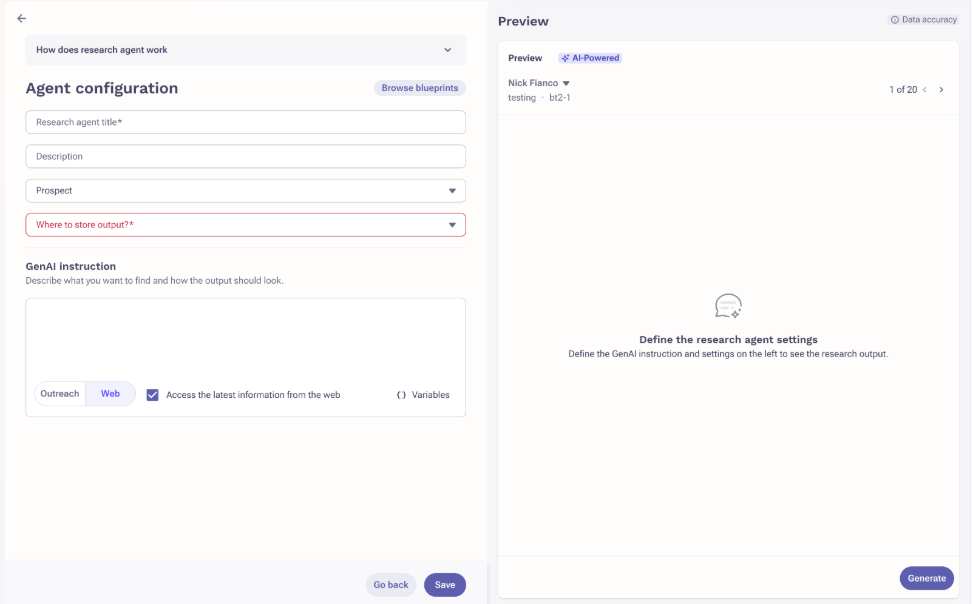
Prospect Research agents are configured from AI Content → Research Agents — the same place as all other Research Agents. You can create separate agents for Internal and External research on the Prospect object.
- Log in to Outreach as an Admin.
- Click Agents & AI >
- Click New Research Agent.
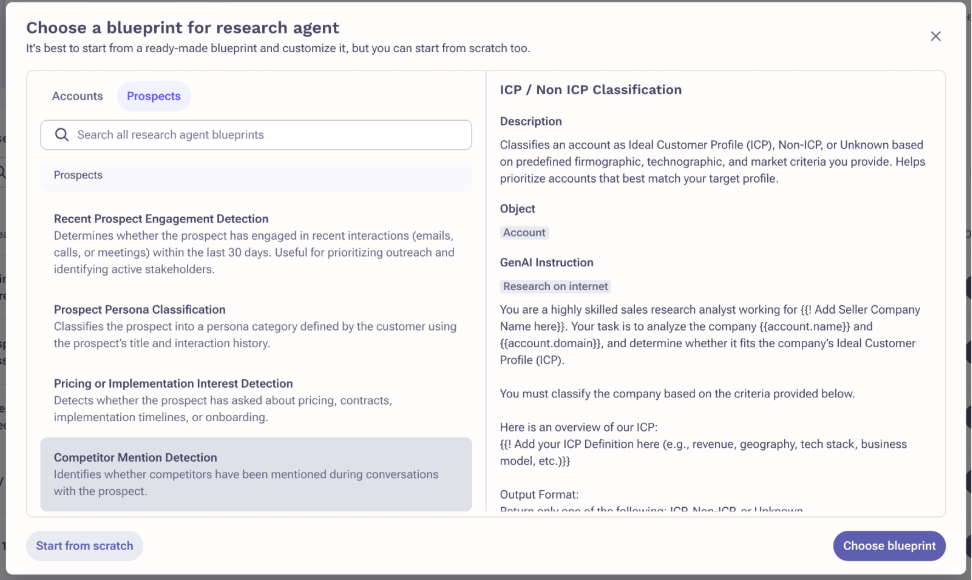
- Choose a Blueprint from the Prospect section — or start from scratch.
- Name the agent and add a short description.
- Set the Object to Prospect and select the field where results will be stored.
- Choose the data source: Internal (emails, Kaia calls, Kaia meeting summaries) or External (Gemini + optional Google Search grounding).
- Test in Playground mode — preview results on a sample prospect and refine the prompt until the output is right.
- Save. The agent is available to run.
Tip: Each Research Agent uses one source type — internal or external. Create separate agents if you want both types of research on the same prospect.
Tip: All blueprints are fully customizable. Edit the prompt, output format, classifications, and field mapping to match your team's workflow.
Adding Research Agent Tiles to the Prospect Overview
To make research results visible directly on the Prospect Overview page, admins need to add Research Agent tiles to the layout:
- Go to the Prospect Overview layout configuration.
- Add a Research Agent tile.
- Select the Prospect fields that should appear in the tile.
Once configured, reps can view, copy, and reference insights directly from the Prospect Overview page without leaving their workflow.
Running Prospect Research
For All Users
Once a Prospect Research agent is set up, anyone with the right permissions can run it. There are two ways to run research:
Option A — Bulk Run (Prospect List View)
Use this when you want to research many prospects at once — for example, before a campaign, when prioritizing a territory, or enriching a new import.
- Go to the Prospect List View.
- Use Manage Columns to add Research Agent-powered Prospect fields to your view.
- Select the prospects you want to research.
- Click Research AI Fields.
- In the pop-up, select the fields you want to update.
- Click Execute.
Tip: Fields that already have values will be skipped by default. Enable Override in the run options if you want to refresh existing research.
Option B — Individual Run (Prospect Overview Page)
Use this for focused, 1:1 prep — before a specific call, writing a personalized email, or reviewing a key stakeholder ahead of a renewal or negotiation.
- Open the Prospect Overview page.
- Click Research AI Fields.
- Select the fields you want to update.
- Click Execute. Results populate directly in Research Agent tiles on the page.
Viewing and Using Results
Research insights appear in Research Agent tiles on the Prospect Overview page. From any tile you can:
- Copy the insight using the copy icon — paste directly into emails, call notes, or documents
- View citations using the info icon — see exactly which source or interaction each insight came from
Tip: You will receive an in-app notification when a Prospect Research run completes. Manage preferences under Personal Settings → Notifications → Research Agent Run Status.
Internal Research — Blueprints
Internal Research analyzes your team's past emails, call transcripts, and meeting summaries to extract structured insights about how a specific prospect has engaged and what they have expressed across conversations.
Note: Internal Research requires interaction history with the prospect to be logged in Outreach. If no emails, calls, or meetings exist, the blueprint will return no relevant data found.
All Internal Blueprints
| Blueprint | What It Tells You | Output | Best For |
|---|---|---|---|
| Recent Prospect Engagement Detection | Whether the prospect has actively engaged — replied to emails, joined calls, or participated in meetings — within the last 30 days. Does not count automated responses or calendar confirmations. | Yes / No / Unknown | SDRs — prioritizing outreach lists |
| Prospect Contact Role Classification | The prospect's role in the buying process based on communication behavior: Champion, Decision Maker, Influencer, Evaluator, or Detractor. Customers can modify these role definitions. | Single classification | AEs · RevOps — deal strategy |
| Prospect Persona Classification | Which customer-defined persona the prospect falls into, based on title and interaction signals. Persona definitions are set by the customer in the prompt. | Single classification | RevOps · Revenue Leaders |
| Pricing or Implementation Interest Detection | Whether the prospect has asked about pricing, contracts, implementation timelines, deployment, or technical setup during any conversation. | Yes / No / Unknown | AEs · SDRs — deal stage signals |
| Competitor Mention Detection | Whether any competitors were mentioned during conversations with the prospect. The competitor list is defined by the customer in the prompt. | Yes / No / Unknown | AEs · Revenue Leaders |
| Top Prospect Pain Point Summary | The most important pain point expressed by the prospect across recent conversations — returned as a single concise sentence. | Short text (max 255 chars) | SDRs · AEs — outreach personalization |
| Most Common Objection Raised | The main objection the prospect has raised — budget, complexity, timing, preference for existing tools, or others — returned as a single concise sentence. | Short text (max 255 chars) | SDRs · AEs — objection handling prep |
| Reason for Prospect Disengagement | The most likely reason the prospect went quiet or stopped responding, based on signals from the most recent interactions before communication stopped. | Short text (max 255 chars) | AEs · Revenue Leaders — re-engagement |
| Prospect Conversation Intelligence Summary | A structured summary of all key themes discussed, buying signals identified, objections or concerns raised, and an overall engagement sentiment (Positive / Neutral / Negative). | Structured long-form | AEs · CSMs — deal reviews |
| Prospect Pre-Call Preparation Brief | A structured brief for an upcoming conversation — covering prospect overview, top priorities, pain points, open questions, and suggested talking points based on interaction history. | Structured long-form | AEs — call prep |
Which Blueprint Should I Use?
| I want to... | Use this blueprint |
|---|---|
| Know if a prospect is still active | Recent Prospect Engagement Detection |
| Understand their role in the deal | Prospect Contact Role Classification |
| Classify them into our internal persona framework | Prospect Persona Classification |
| Check if they've asked about pricing or implementation | Pricing or Implementation Interest Detection |
| See if they've mentioned a competitor | Competitor Mention Detection |
| Quickly understand what they care about | Top Prospect Pain Point Summary |
| Know what objections they've raised | Most Common Objection Raised |
| Understand why they went quiet | Reason for Prospect Disengagement |
| Get a full picture of all past conversations | Prospect Conversation Intelligence Summary |
| Prepare for an upcoming call or meeting | Prospect Pre-Call Preparation Brief |
External Research — Blueprints
External Research searches publicly available information about the prospect using Gemini and Google Search. It is designed for building context before a first interaction — when you have little or no internal history with the person.
The Prospect Validation Layer — Read This First
Before generating any external research output, the system runs a mandatory identity check.
Why it exists: Multiple people can share the same name. Without verification, the system could research the wrong person and give you incorrect information to use in a real conversation.
How it works:
- The system searches using the prospect's name, title, company, and email.
- It confirms the person is at that company from a credible, accessible public source.
- Verified → research is generated.
- Not verified → no output is returned.
Key rules:
- Absence of data = not verified. Never treated as confirmation.
- The system never fabricates sources or guesses.
- No result is correct behavior — not a failure.
About 45–60% of prospects have enough publicly accessible data to be researched. For others, fall back to internal research or manual prep.
Accuracy
| Metric | Result |
|---|---|
| Accuracy of facts when a prospect is verified | 94.6% |
| Wrong person identified — with validation active | Less than 2% (1 in 90 runs) |
| Correct rejection when no public data is available | 98.6% |
| Prospects with sufficient accessible public data | ~45–60% |
Note: Platforms not accessible to the model include LinkedIn, ZoomInfo, RocketReach, ContactOut, and Datanyze. If a prospect's profile only exists there, no result will be returned.
All External Blueprints
| Blueprint | What It Tells You | Output | Best For |
|---|---|---|---|
| ICP Fit — Prospect Qualification | Classifies whether the prospect matches your Ideal Customer Profile based on role, company context, and publicly available signals. ICP criteria are defined by the customer in the prompt. | ICP / Non-ICP / Unknown | RevOps · SDRs — list prioritization and routing |
| Persona Classification | Classifies the prospect into a customer-defined persona based on their role, inferred responsibilities, and available external context. Uses title as the primary signal. | Single classification | RevOps — segmentation |
| Prospect Profile & Personalization | A full sales-ready profile including background and career context, current role and responsibilities, relevant recent signals, likely priorities and challenges, 1–3 specific personalization hooks, and a suggested outreach opener. | Structured long-form | SDRs · AEs — first-touch outreach prep |
| Prospect Role Priorities & Challenges | The key responsibilities, likely business priorities, and common challenges associated with the prospect's role and company context. Based primarily on role signals with external context where available. | Structured long-form | AEs · SDRs — discovery and call prep |
| Background, Public Presence & Speaking Signals | Career trajectory, areas of expertise, and any public activity — speaking engagements, conference appearances, podcasts, interviews, or authored content. States clearly if no public presence is found. | Structured long-form | AEs — executive engagement and warm outreach |
Which Blueprint Should I Use?
| I want to... | Use this blueprint |
|---|---|
| Check if a prospect fits our ICP before prioritizing them | ICP Fit — Prospect Qualification |
| Classify them into our persona framework using public data | Persona Classification |
| Build a personalized outreach for a first-touch email | Prospect Profile & Personalization |
| Understand what they likely care about going into a call | Prospect Role Priorities & Challenges |
| Find out if they have a public presence I can reference | Background, Public Presence & Speaking Signals |
Storage & Display Behaviour
Prospect Research uses a two-layer storage model. Understanding this helps explain why results can look different depending on where you view them.
| Layer | What Is Stored | Character Limit | Used For |
|---|---|---|---|
| Prospect table | Summarized version of the output | ≤ 255 characters | Prospect List View columns, CRM sync, search indexing, API v2 |
| Citations table | Full research output with sources | No limit | Prospect Overview tiles, slide-out panels, variable resolution in personalization and AI |
How It Looks in Different Places
| Where You Look | What You See | How to Get the Full Output |
|---|---|---|
| Prospect List View column | Summarized output — up to 255 characters | Click the cell to open a slide-out panel with the full output and citations |
| Prospect Overview tile | Full research output with copy icon and source citations | Already showing the full output — no action needed |
| Variable in personalization | Full output — complete context used for AI and personalization | Already using full output — no action needed |
Current Limitations
| Area | What Happens | What To Do |
|---|---|---|
| CRM Sync | Only the summarized value (≤ 255 chars) syncs to your CRM | View full output in Outreach Overview tiles or the slide-out panel |
| Search | Search runs on the summarized value only — not the full output | Open the Prospect record directly to view full research content |
| API v2 | Returns only the summarized Prospect field value | Access full output through the Outreach UI |
| External — discoverability | ~45–60% of prospects have enough accessible public data | Use internal research or manual research for others |
Best Practices
| Situation | Recommended Approach |
|---|---|
| First-touch outreach — no prior interaction | Run External Research first. Use Prospect Profile & Personalization or Background & Speaking Signals to build context before reaching out. |
| Active deal — prospect already in conversations | Run Internal Research. Use the Pre-Call Brief before meetings. Use Pain Point Summary and Objection blueprint for ongoing prep. |
| Re-engaging a stalled prospect | Run Reason for Disengagement to understand why they went quiet, then use Engagement Detection to confirm current activity level. |
| Prioritizing a large prospect list | Run ICP Fit (External) and Engagement Detection (Internal) in bulk from List View to quickly segment by fit and activity. |
| Preparing for an executive conversation | Combine the Pre-Call Brief (Internal) with Background & Public Presence (External) for the most complete picture. |
| Prospect fields show a short value in List View | Click the field cell to open the slide-out panel — this shows the full research output and citations. |
| No result returned for external research | The prospect could not be verified from accessible public sources. Fall back to internal research or manual research. |
Frequently Asked Questions
What's the difference between Prospect Research and Account Research?
Account Research focuses on the company — business priorities, market context, strategic initiatives. Prospect Research focuses on the individual — their engagement history, role in the deal, personal priorities, and public profile. They are complementary and designed to be used together.
Can I run both internal and external research on the same prospect?
Yes. Create separate Research Agents — one for internal, one for external — both configured on the Prospect object. Run them independently and the results will appear in different fields on the Prospect Overview page.
Why did external research return no result for a prospect?
The Prospect Validation Layer requires the system to confirm the right person from a credible public source before generating output. If the prospect's profile exists only on restricted platforms — LinkedIn, ZoomInfo, RocketReach — the system cannot verify them and returns no result. This is correct and intentional. About 45–60% of prospects have sufficient accessible public data to be researched. For others, use internal research or manual prep.
Why does the List View show a shorter version than the Prospect Overview tile?
For outputs longer than 255 characters, the system stores a summarized version in the Prospect table — this is what appears in List View columns and syncs to CRM. The full output is stored separately and shown in Prospect Overview tiles. Click any List View field cell to open a slide-out panel with the complete output.
What gets synced to my CRM?
Only the summarized value (up to 255 characters). The full research output is accessible within Outreach via Overview tiles and slide-out panels but does not sync to CRM in the current release.
Can I customize the blueprints?
Yes — all blueprints are fully customizable. Admins can edit the prompt, output format, field mapping, and classification options. For blueprints like Competitor Mention Detection, Persona Classification, and ICP Fit, you add your own definitions directly in the prompt.
Internal research returned no data — why?
Internal Research requires interaction history with the prospect to be logged in Outreach — emails sent or received, calls recorded via Kaia, or meetings summarized via Kaia. If no interactions exist, the blueprint will return no relevant information found. This is expected.
Who can set up and run Prospect Research?
Admins and RevOps users with the relevant permissions can create and configure Research Agents. AEs, SDRs, and other users can run agents on Prospect records depending on their access level. Permissions are managed under AI Content → Research Agents governance settings.
Fields already have values — will running research overwrite them?
No. By default, Research Agent skips Prospect fields that already contain a value. Enable the Override option in the run pop-up if you want to refresh existing research with the latest output.
What's the difference between Prospect Research and Account Research storage?
Account Research stores the full output directly in the Account field — available everywhere including CRM sync and API v2. Prospect Research uses a two-layer model: a summarized version in the Prospect table (for List View, CRM, search, API) and the full output in a separate Citations table (for Overview tiles, slide-out panels, and variables). This is a technical requirement for supporting Prospect-level research at scale.
Was this article helpful?
That’s Great!
Thank you for your feedback
Sorry! We couldn't be helpful
Thank you for your feedback
Feedback sent
We appreciate your effort and will try to fix the article