Objective
Provide guidance on configuring and using Outreach notifications for Microsoft Teams.
Applies To
Outreach Users
Outreach Admins
Microsoft Teams
Procedures
Feature Enablement
- Log in to Outreach as an Admin.
- Click Administration > Organization > Org info > General.
- Navigate to Microsoft Teams notifications.
- Connect the app by following the prompts.
Integration for Microsoft Teams is enabled at the instance level using OAuth. Once connected, Outreach attempts to automatically map Outreach users to their corresponding Microsoft Teams users and install Outreach Microsoft Teams app on their behalf.
If the mapping and install is successful, users can start receiving notifications via Microsoft Teams and configure Microsoft Teams app as their preferred notification channel.
User Notifications
- Log in to Outreach as user.
- Click Personal settings > Notifications.
- Toggle on Teams and the desired notification activity.
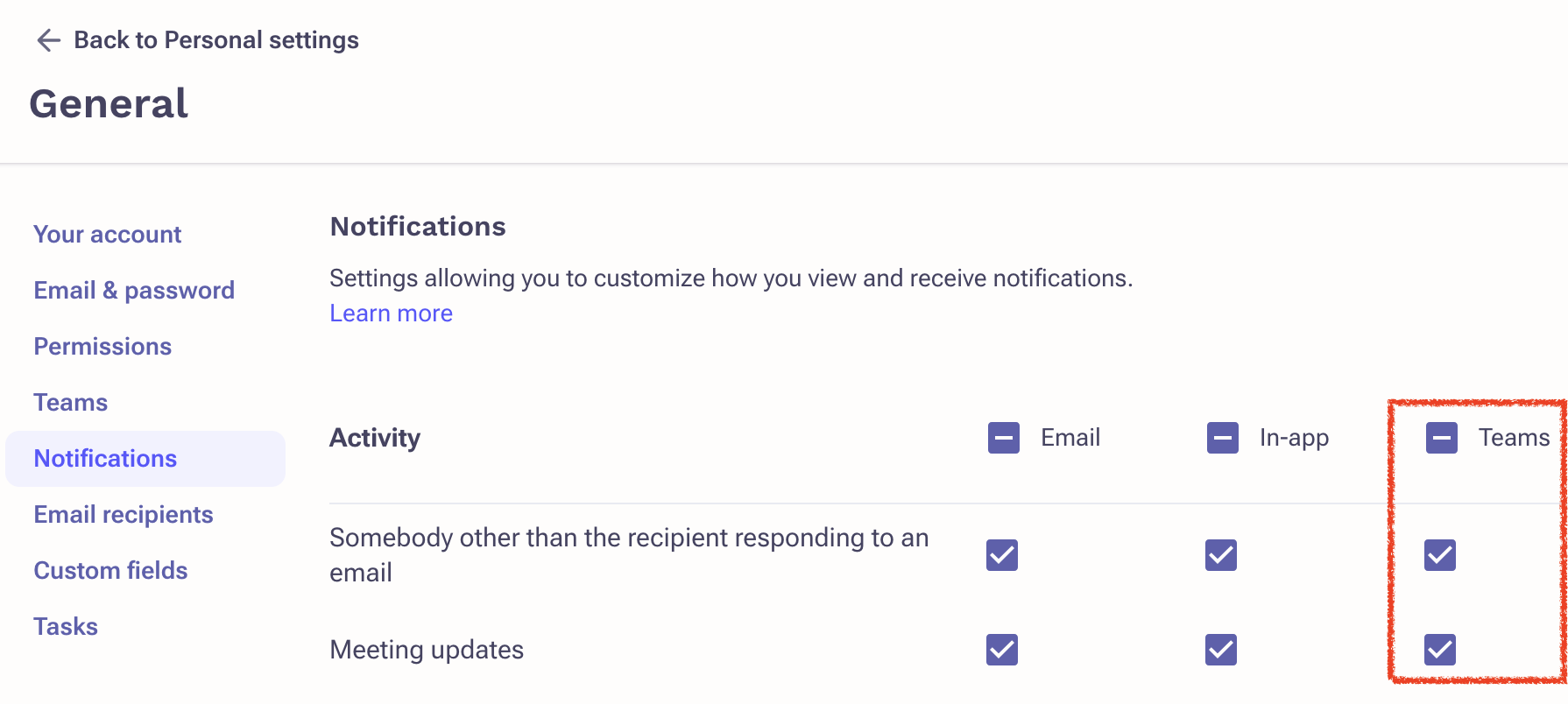
- Click Save.
Was this article helpful?
That’s Great!
Thank you for your feedback
Sorry! We couldn't be helpful
Thank you for your feedback
Feedback sent
We appreciate your effort and will try to fix the article