Objective
Learn how to use the Meeting Prep Agent for meeting preparation.
Applies To
- Outreach users
Before You Begin
To generate Meeting Prep briefs, you must meet both requirements:
- Kaia recording access: You need a full Kaia recording license for recording your meetings, such as Orchestrate or the Meet add-on. You can verify this by navigating to the Kaia page. If you do not see the +Kaia button, you need to request access from your admin.
- Calendar connected: Your calendar must be connected to Outreach so your meetings are synced and available for Meeting Prep.
If you do not meet these prerequisites, you may still be able to view briefs generated by other attendees, but you will not be able to generate a new brief or edit the Meeting context.
Generate the Meeting Prep Before Your Meeting
Meeting Prep helps you quickly get oriented before a prospect meeting so you can focus on what matters in the conversation. It surfaces relevant context from past interactions without requiring manual prep or digging through records. Sections in the brief are defined by the Outreach admin.
Meeting Prep is available for upcoming meetings with prospects and is designed to be used right before the call, when context and focus matter most.
How to Access the Meeting Prep Brief
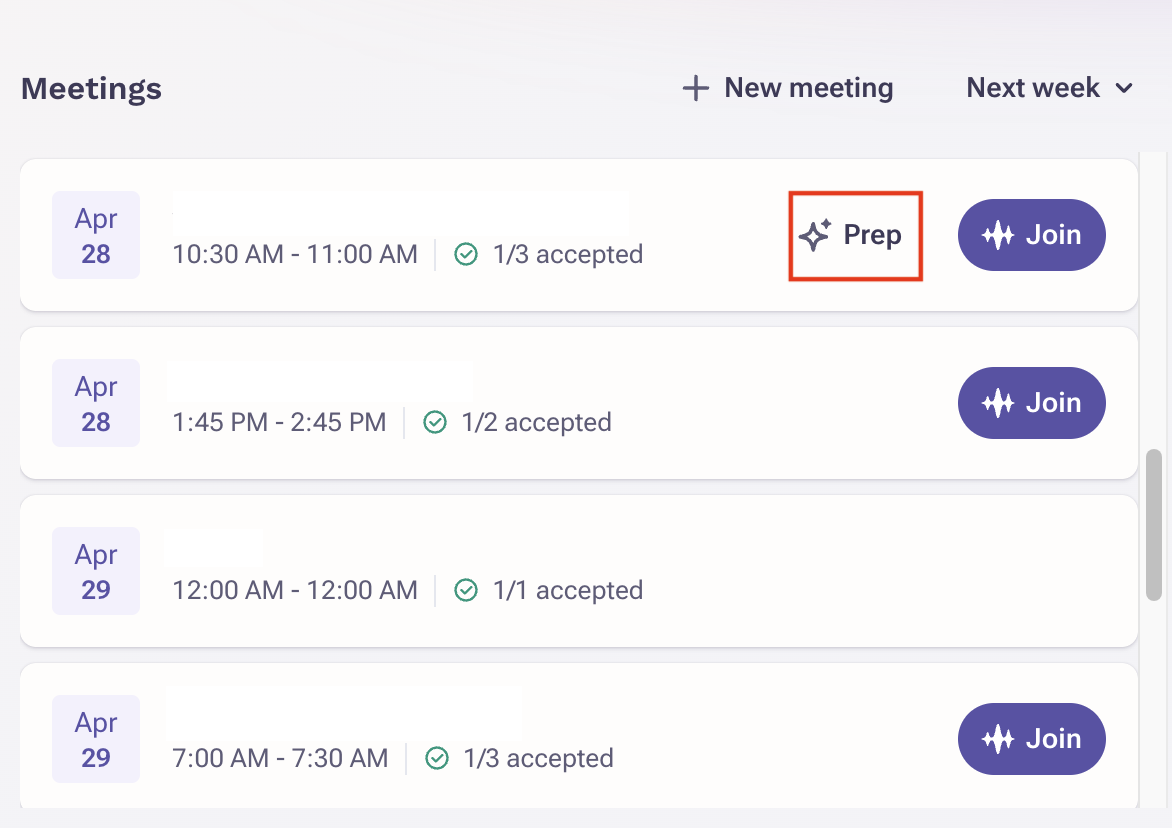
The Meeting Prep brief can be launched directly from the meeting by clicking the Prep button.
From the Outreach Web App
You can open the Meeting Prep brief from multiple places in Outreach:
- From the homepage meeting module
- From an individual meeting in Activity > Calendar
- From Activity > Meetings > Agenda (click on the meeting detail)
- Accounts > Meetings
- Prospects > Meetings
- Sequences > Meetings
- Opportunities > Meetings
Outlook Calendar via the Outlook Add-in
- Open event details.
- Locate the Outlook add-in in the top toolbar and launch the add-in in the sidebar.
- Click the Prep button inside the add-in sidebar. This will open the Meeting Prep inside the add-in.
Google Calendar from the Outreach Everywhere extension
- Open event details.
- Click Prep.
The brief will populate in a side panel. For further details, click expand or drag the panel edge.
Generating the Brief
Meeting Prep is available only for upcoming meetings with prospects. Once you click Prep, the Meeting Prep brief is generated for the selected upcoming meeting. The brief is shared across all colleagues attending the meeting, so everyone sees the same content.
When You Are Asked to Provide Meeting Context
If a section is requesting you to Provide meeting context, it means that one or more sections in the brief require additional information about the meeting in order to generate relevant output. This behavior is configured by the admin when setting up the Meeting Prep template.
Use the Meeting context field to share details such as:
- The purpose or goal of the meeting
- Topics you plan to cover
- The type of conversation you expect (e.g., discovery, demo, or alignment)
- Any specific outcomes or decisions you want to drive
The more detail you provide, the more tailored and relevant the final output will be.
Once you provide the meeting context, the affected sections will regenerate automatically. You can update the meeting context later.
Note: Because the Meeting Prep brief is shared, any meeting context you provide updates the brief for everyone attending the meeting. You can always see who last updated the brief, so changes are visible and transparent.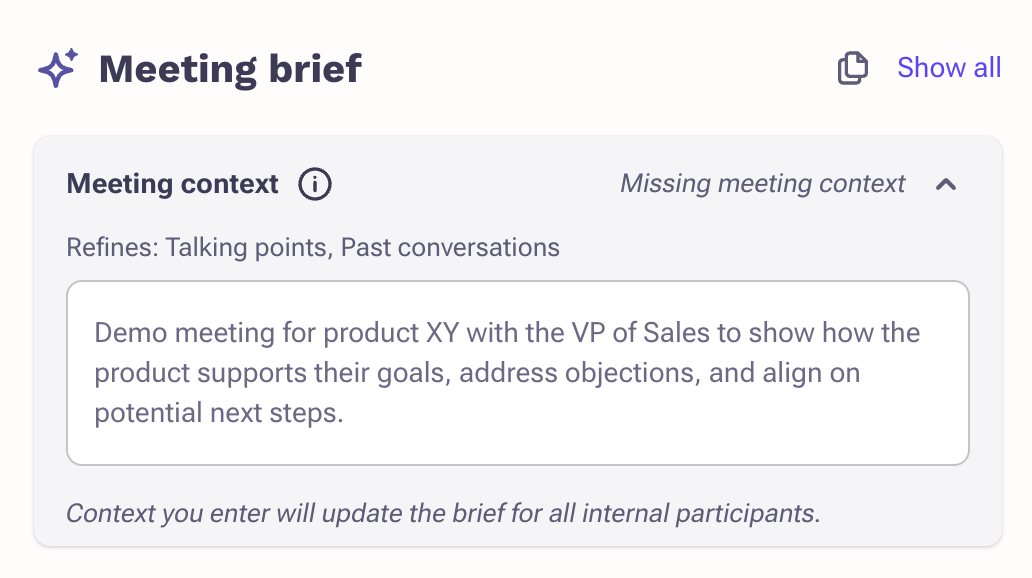
Brief View Modes: Side Panel and Full Page
In the Outreach web app, the Meeting Prep brief opens in a side panel by default. You can switch to a full-page view by clicking the expand icon in the top-right corner of the brief.
The following elements are available in both views:
- Meeting name and time
- Account name with a direct link
- Opportunity name with a direct link (if the meeting is associated with an opportunity)
- Meeting join links
When opened in full-page view, you also get easy access to past conversations in the account, filtered to calls, emails, and meetings.
Actions Available in the Brief
From the Meeting Prep brief, you can:
- Join the meeting
- Copy the entire brief
- Expand all brief sections by clicking See all
Frequently Asked Questions
I do not see the Prep button for my meetings
First, make sure the meeting is scheduled in the future and includes at least one prospect.
If it does, confirm whether you are listed as an attendee. Users who are not attending the meeting will only see the brief after it has been generated by someone who is attending.
If you are attending, check whether you have a Kaia recording license assigned. You can verify this by navigating to the Kaia page. If you do not see the +Kaia button, you need to request access from your admin.
Only users with this license can generate meeting briefs. Without it, you can view briefs created by others, but you cannot generate a new brief or edit the Meeting context.
Was this article helpful?
That’s Great!
Thank you for your feedback
Sorry! We couldn't be helpful
Thank you for your feedback
Feedback sent
We appreciate your effort and will try to fix the article