Purpose:
The purpose of this article is to provide direction to Outreach Users in configuring reminders and bumping emails in Outreach.
Intended Audience:
- Outreach Users
Notes:
- Outreach Everywhere must be installed and enabled to complete this process. For more information regarding installing Outreach Everywhere, refer to the How To Install the Outreach Everywhere Chrome Extension article.
- This article discusses the process of setting reminders for a specific email communication. For more information on setting automatic reminders, refer to the How To Enable Automatic Reminders in Gmail article.
How To Set Reminders and Promote Emails in Gmail:
- Compose a new email or access an existing email.
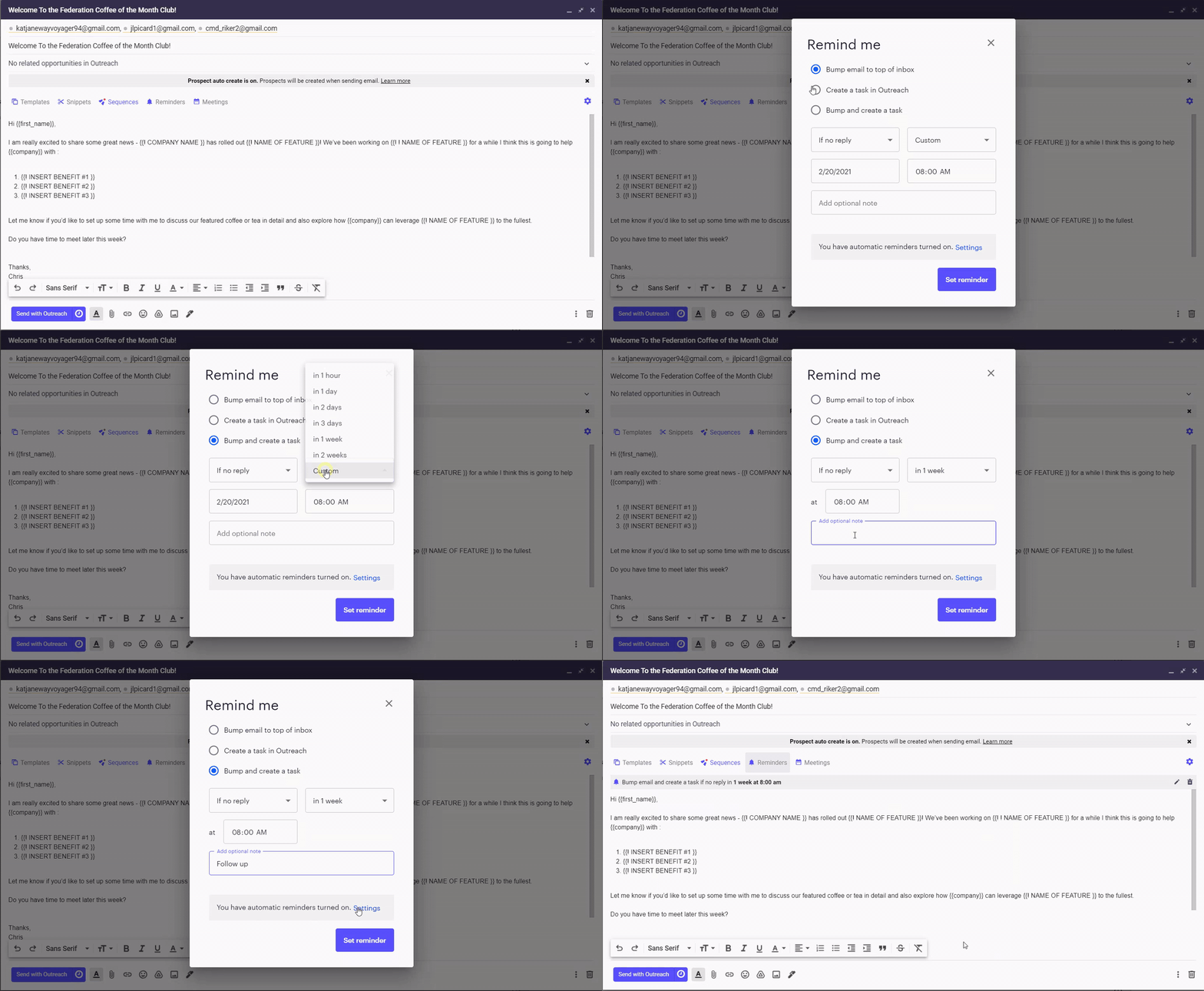
- Click the Reminders icon (bell) in the email composition window.
- Configure the reminder as outlined in the table below:
Option Description Bump email to top of inbox Moves the email to the top of the inbox based on the user-defined parameters.
Create a task in Outreach Creates a follow up task in Outreach. Bump and create a task Combine the actions of promoting an email in the Users inbox and creating a follow up task. Process action - If no reply
- No matter what
Timeframe - In 1 hour
- In 1 day
- In 2 days
- In 3 days
- In 1 week
- In 2 weeks
- Custom
Date & Time Provides users with a calendar picker and time options. Optional Note Input pertinent information regarding the reminder.
Note: Reminders and notes are sent to a user's inbox. - Click Set Reminder.
Additional Resources:
Was this article helpful?
That’s Great!
Thank you for your feedback
Sorry! We couldn't be helpful
Thank you for your feedback
Feedback sent
We appreciate your effort and will try to fix the article